A provider playlist may mix children’s channels with news, sports, movies, series, regional groups, and content intended for adults. Giving a child the full list makes navigation harder and can expose categories that a parent or guardian did not choose.
The practical solution is to create a smaller kids IPTV playlist from a source you are authorized to use, then set age-appropriate viewing hours in Export Center.
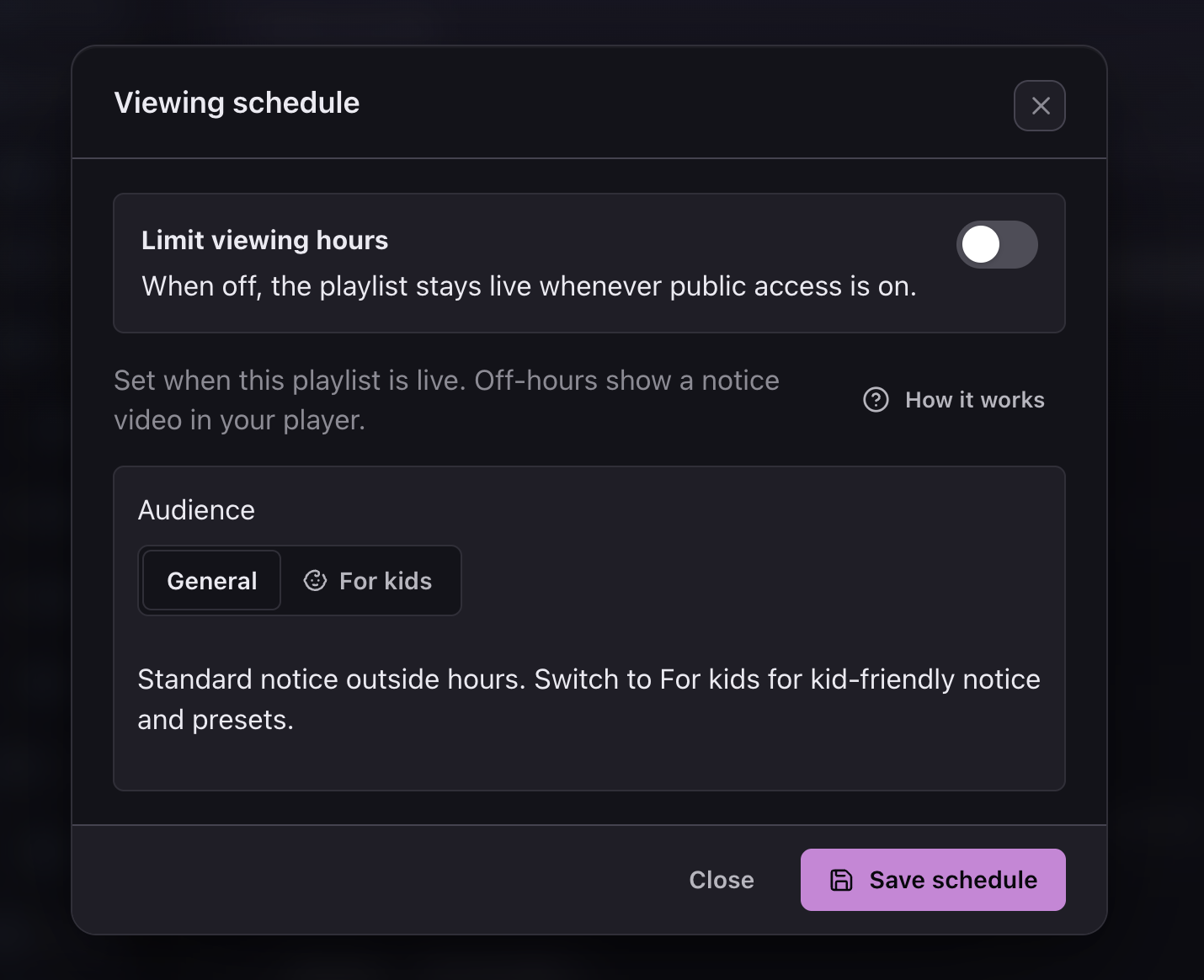
Viewing schedule: Enable Limit viewing hours for the kids playlist, then choose the For kids audience. During allowed hours the playlist remains live. Outside those hours, the player shows a kid-friendly notice video instead of live channels.
1. Start with a separate kids playlist
Import the authorized M3U URL, M3U file, or Xtream source as a new playlist. Give it a name that is unmistakable on every device, such as Kids TV or Family Kids. Do not reuse the main household playlist if the goal is to keep the child-facing guide focused.
During import, select only the regions, languages, and content types you have reviewed. Leaving unrelated groups out at this stage is clearer than importing the entire source and trying to hide thousands of rows later. If you need a refresher on the import flow, follow the import-to-distribution guide.
2. Review channels instead of trusting group names
A group called “Kids” is a useful starting point, but its label is not a safety guarantee. Open the group, review the channel names, and test representative streams. Check other family, education, animation, and regional groups for suitable channels that may have been categorized differently.
- Hide or remove channels that are irrelevant, unavailable, or not appropriate for the intended age.
- Exclude movie and series groups unless you have reviewed their contents separately.
- Keep the language and region selection narrow enough for a child to navigate without confusion.
- Recheck the playlist after a source refresh because providers can add or rename groups.
Playlist editing is only one layer of household safety. It does not replace supervision, content ratings, a device PIN, or the parental-control features provided by the television, phone, tablet, streaming box, or player.
3. Make the channel list and guide easy to understand
Rename unclear channels, use consistent group names, remove promotional prefixes, and fix broken logos. A short list with recognizable artwork is easier for a child to use than a large list with duplicate or cryptic labels.
For Live TV, add EPG data and verify each important match. A correct IPTV EPG guide helps a parent see what is currently playing and what comes next. Do not rely on the channel name alone when two regional versions share a similar label. Check the programme title and local start time before publishing.
4. Publish a protected output for the kids device
In Export Center, select the kids playlist and copy its M3U link or Xtream-style login details. Add that output to the child-facing device instead of the original provider source. The edited output keeps hidden channels out of the player and avoids exposing source credentials on every device.
- Use a unique export password or token for the kids playlist.
- Do not reuse the main household playlist credentials.
- Rotate the output credentials if they are shared outside the intended household.
- Use manual public-access pause when you need to stop the published links immediately.
Test the final output in the real player. Confirm that unwanted groups are absent, logos load, the guide uses local time, and the playlist still works after the player refreshes its cache.
5. Set school-time, homework, and bedtime viewing hours
Decide the viewing routine before configuring the playlist. Open Viewing schedule in Export Center, enable Limit viewing hours, and select the For kids audience for kid-friendly notices and presets.
- School mornings: keep entertainment apps unavailable until the household is ready.
- School hours: block or limit the player on weekdays when the child should be in class.
- Homework time: add a separate weekday block before evening viewing.
- Bedtime: stop access early enough for the household’s wind-down routine.
- Weekends and holidays: use different limits rather than copying the school-day window.
Save the schedule, then test the playlist during an allowed period and an off-hours period. Device or player parental controls can still provide a second layer, especially when an adult-only PIN is available.
6. Use manual pause for an immediate stop
The viewing schedule handles recurring household hours. M3UEditor’s public-access switch can pause the kids playlist’s M3U, Xtream, and EPG links immediately for a household decision, lost device, or exposed credentials. The pause affects every player using that playlist’s output.
When access is enabled again, the existing token remains unchanged. If the link may have reached someone outside the household, rotate the token or export password instead of only enabling it again. Keep a note of which devices use the kids output so that credential changes are easy to complete.
7. Review the kids playlist regularly
Schedule a short parent or guardian review after source updates and at least once each school term. Look for new groups, removed channels, renamed channels, changed logos, broken streams, and incorrect EPG matches. Also check whether the viewing rules still fit the child’s age and current school routine.
Keep the content decision and the time decision separate. Playlist editing determines what appears in the kids output, while Viewing schedule determines when that output remains live. Device or player parental controls can add another layer when the household needs one.
Create a smaller, reviewed playlist for the kids device. Curate the content first, then set its viewing hours in Export Center.
Get Started FreeCommon questions
Can M3UEditor automatically block a kids playlist during school or bedtime?
Yes. Open Viewing schedule in Export Center, enable Limit viewing hours, select For kids, and configure the allowed hours. Outside those hours, the player shows a kid-friendly notice video instead of live channels.
Should I create a separate playlist for children?
Yes. A separate output lets you keep only reviewed groups and channels, use separate credentials, and avoid exposing the full household playlist on a child-facing device.
Does a kids group guarantee age-appropriate content?
No. Group labels come from the source and should be treated as organizational hints. A parent or guardian should review the actual channels and continue using device-level parental controls.
Can I stop the kids playlist immediately?
Yes. The Export Center public-access switch can pause the playlist’s M3U, Xtream, and EPG links until you enable them again.