An M3U file is a list of media locations plus optional metadata such as channel names, logos, groups, and EPG identifiers. Editing the raw text can work for a very small list, but it becomes error-prone when a provider feed contains many groups or regularly changes.
Before you begin: use playlists and streams from services you are authorized to use. M3UEditor manages playlist data; it does not provide channels or IPTV subscriptions.
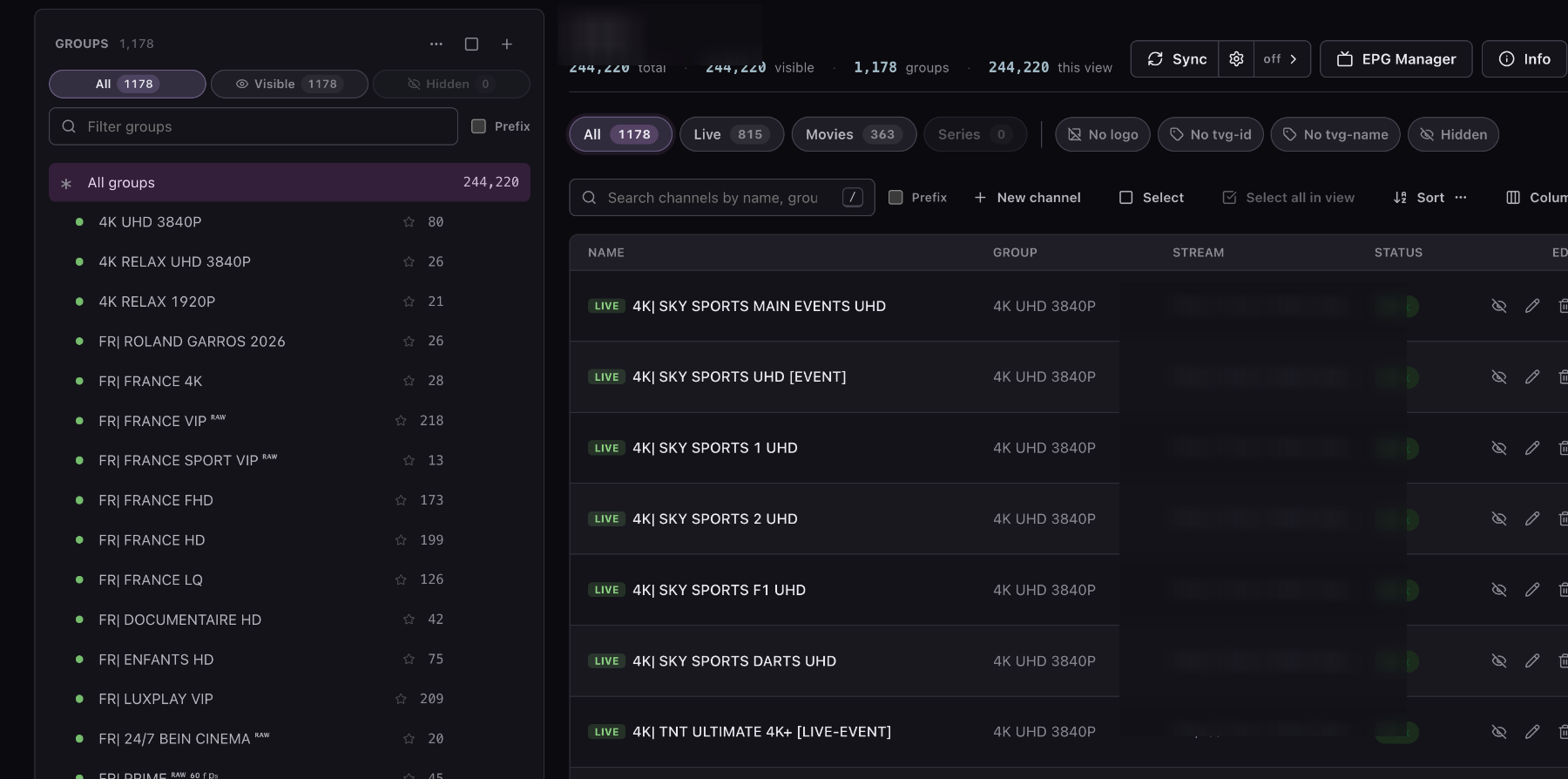
1. Choose the M3U source
Start a new import and choose either an M3U URL or an M3U file. A URL is useful when the source changes over time. A file is useful for a one-time cleanup or when the source is stored locally.
Give the playlist a clear working name. Select an EPG mode only if you already know whether you will use an external XMLTV URL or the M3UEditor guide library. You can change the guide settings after import.
2. Analyze and select groups
Analysis reads the source before saving it. Review the group names and channel counts, then select only the content you need. For example, a Live TV playlist does not need every movie and series group from a full provider export.
- Keep regional, news, sport, or family groups that belong in this playlist.
- Leave unwanted language, duplicate, test, and unused VOD groups unchecked.
- If the planned import exceeds your account limit, reduce the selection before confirming.
Group-first selection reduces clutter and makes later editing faster, especially for a large IPTV playlist.
3. Rename, reorder, hide, and group channels
Open the imported playlist in the editor. Groups appear as categories in most IPTV players, so rename them for the people who will use the list. Move or reorder groups and channels to control the order in the exported M3U.
- Rename: replace unclear provider labels with readable channel and group names.
- Reorder: place the most-used groups and channels first.
- Hide: omit seasonal, duplicate, or unwanted channels without losing their saved details.
- Move: put channels into a new or existing group with a consistent purpose.
Hiding is safer than deleting when you may want to restore a channel later. Hidden rows stay in the editor but are left out of normal distributed output.
4. Fix names, logos, and EPG IDs
Select a channel to edit its display title, stream URL, tvg-id, logo URL, group, and
visibility. Use a direct HTTPS image URL for logos and confirm that its preview loads before saving.
The display name does not normally choose programme data. The tvg-id must match a channel
identifier in the selected XMLTV source. If the guide is missing or wrong, follow the
EPG matching workflow instead of changing names at
random.
5. Review and publish the edited playlist
Search the playlist for obvious duplicates, blank titles, missing logos, and incorrect groups. Refresh the EPG preview for several channels. When the list is ready, open Export or Distribute and create a protected M3U URL for your player.
Distribution credentials are separate from the original source credentials. If a shared link is exposed, rotate or replace its token without changing the provider login. After any edit, refresh the playlist inside the player because many apps cache channel metadata.
A repeatable cleanup workflow
- Import only the groups needed for one clear playlist purpose.
- Normalize group names before editing individual channels.
- Hide unwanted rows, then remove true duplicates after review.
- Fix channel titles and logo URLs group by group.
- Match EPG IDs and test current programme data.
- Publish the protected URL and force a refresh in the IPTV player.
This order avoids repeating work. It also makes provider sync easier because your manual changes are attached to an organized playlist rather than an unfiltered source dump.
Keep later playlist updates predictable
Save a short note about the purpose of each custom group and the reason important channels were hidden or manually matched. When the source changes, this context helps you decide whether a new row belongs in the public output or should remain outside the curated list.
After a source refresh, review added and removed groups before changing individual rows. Search for channels whose names or IDs changed, recheck a few EPG matches, and inspect the exported playlist in a test player. Avoid rebuilding the whole list simply because one provider label changed. A controlled review protects the channel order, logos, groups, and guide work you already completed.
Edit your M3U playlist online. Import a URL or file, review the groups, and keep control of the output.
Get Started FreeCommon questions
Does editing an M3U playlist change the original source?
No. M3UEditor creates an edited playlist in your account. Your source remains separate, and your player uses the output you publish.
Should I hide or delete unwanted channels?
Hide a channel when you may need it later. Delete only after confirming that the row is obsolete or duplicated and you no longer need its saved metadata.