To import an Xtream source, you normally need a server URL, username, and password from a service you are authorized to use. M3UEditor stores the source for import and optional sync, while distribution can use separate credentials for your players.
Keep credentials private: do not paste Xtream logins into public documents or share source URLs containing usernames and passwords. Use protected output credentials for players.
1. Prepare the Xtream credentials
Confirm the server address includes the correct protocol and port. Keep the username and password exactly as supplied. Extra spaces, a missing port, or switching between HTTP and HTTPS can cause an authentication failure.
If you only have a long get.php URL, you may be able to import it as an M3U URL instead.
Xtream import is preferable when you want the portal’s separate category and content-type structure.
2. Analyze the portal before importing
Create a new import, choose Xtream, and enter the server, username, and password. Analysis should return the available categories before content is saved.
If analysis fails, test the credentials with the authorized service, verify the server address, and check whether the account allows API access. Repeated retries will not correct an expired or blocked source account.
3. Choose Live TV, Movies, and Series
Select only the content types and categories needed for this playlist. A focused Live TV list is easier to edit and keeps movie or episode rows from consuming playlist capacity.
- Live TV: linear channels that can use EPG data.
- Movies: video-on-demand titles, usually organized by genre or region.
- Series: shows whose seasons and episodes may expand into many rows.
Review the category counts. Series and VOD libraries can be much larger than their category names imply.
4. Edit the imported Xtream playlist
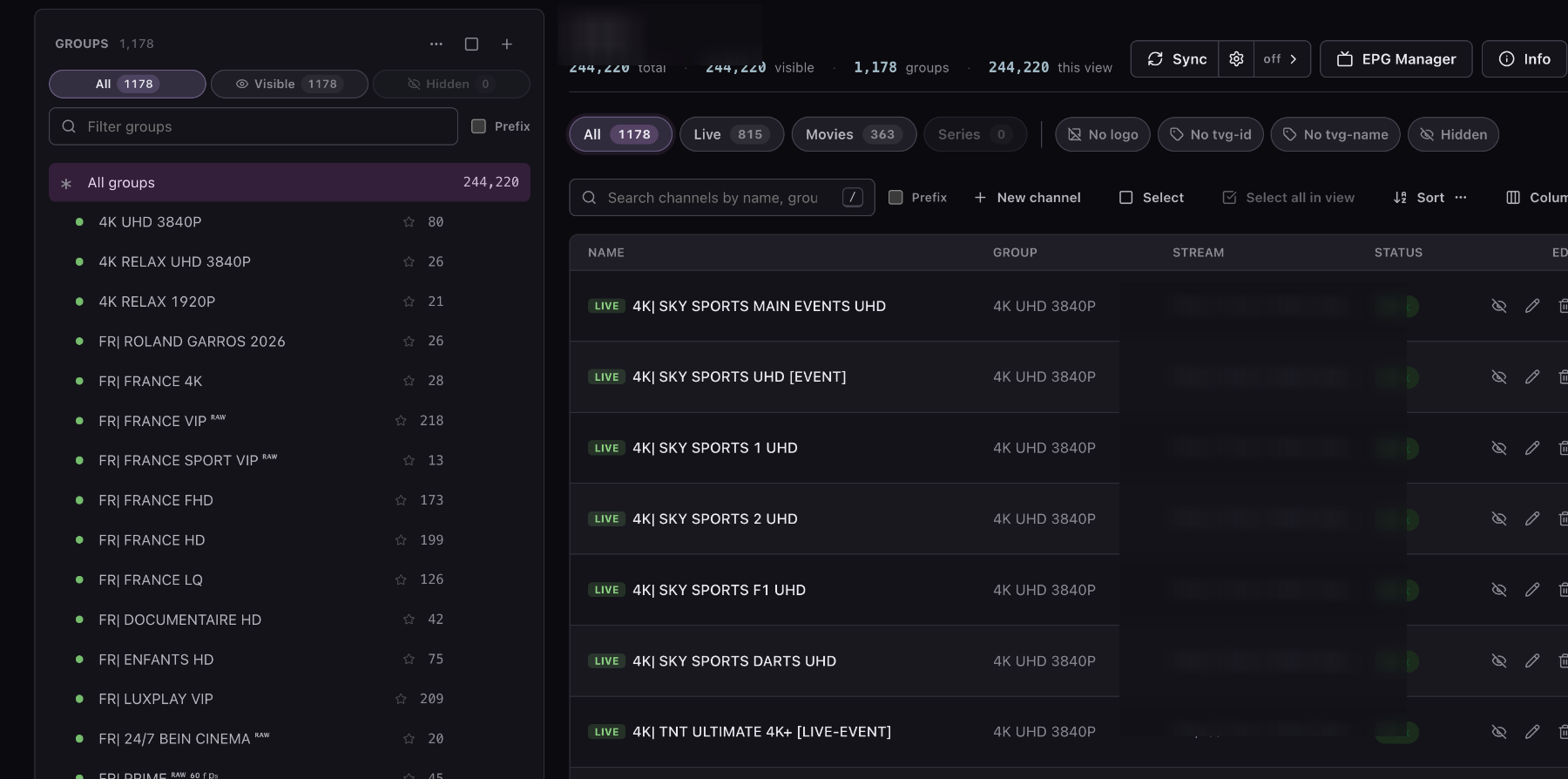
Open the playlist editor after import. Rename groups, change their order, hide unwanted channels, fix logos, and move rows into custom categories. Content types remain available as filters so Live TV, Movies, and Series do not need to be edited together.
For Live TV, review tvg-id values and
add EPG to the playlist. Movies and Series do not
normally use the same linear programme guide workflow.
5. Decide how source sync should work
If your plan includes sync, the playlist can check the Xtream source on an allowed interval. Sync can bring in provider additions and removals while preserving supported manual edits on existing rows.
Sync updates playlist content; it does not guarantee that new channels receive the correct EPG ID. Run EPG Manager after a major source change and review newly imported groups before publishing them.
6. Publish protected output
Export the cleaned playlist as M3U or use the Xtream-style distribution details shown in the account. The player receives the edited group structure and channel metadata rather than the full unfiltered source.
Use a separate export password or token, keep distribution disabled while making sensitive changes, and rotate public credentials if a link leaks. Rotating output access does not require changing the source provider password.
Diagnose an Xtream import that does not complete
First separate authentication errors from size or network problems. An immediate unauthorized response usually points to the server URL, username, password, subscription status, or API access. A timeout after categories load may point to one oversized or unstable category.
Re-run analysis with a small category selection instead of repeatedly requesting the full portal. If Live TV works but Series does not, leave Series out and review that source with the authorized service. Record the exact error and time before opening support. Never send the raw password in a public screenshot or forum post.
Choose M3U or Xtream-style output for the player
Editing an Xtream source does not force every device to use the same input method. You can publish an M3U URL for players that prefer a playlist link, or use the Xtream-style server, username, and password shown in distribution settings when the player supports that login format.
Test how the chosen player handles Live TV, Movies, Series, and EPG. Some players organize Xtream content types more naturally, while others are easier to maintain with one M3U URL plus a separate XMLTV URL. Use the same edited playlist and protected output credentials in either case.
Edit your Xtream playlist with a smaller, deliberate import. Choose the content first, then organize and publish protected output.
Get Started FreeCommon questions
Can I import only Live TV from Xtream?
Yes. Choose Live TV and only the required portal categories during import. Movies and Series can remain unselected.
Will editing change the provider account?
No. Your edits are stored in M3UEditor and applied to its output. They do not rename or delete content in the original Xtream portal.